
Introduction
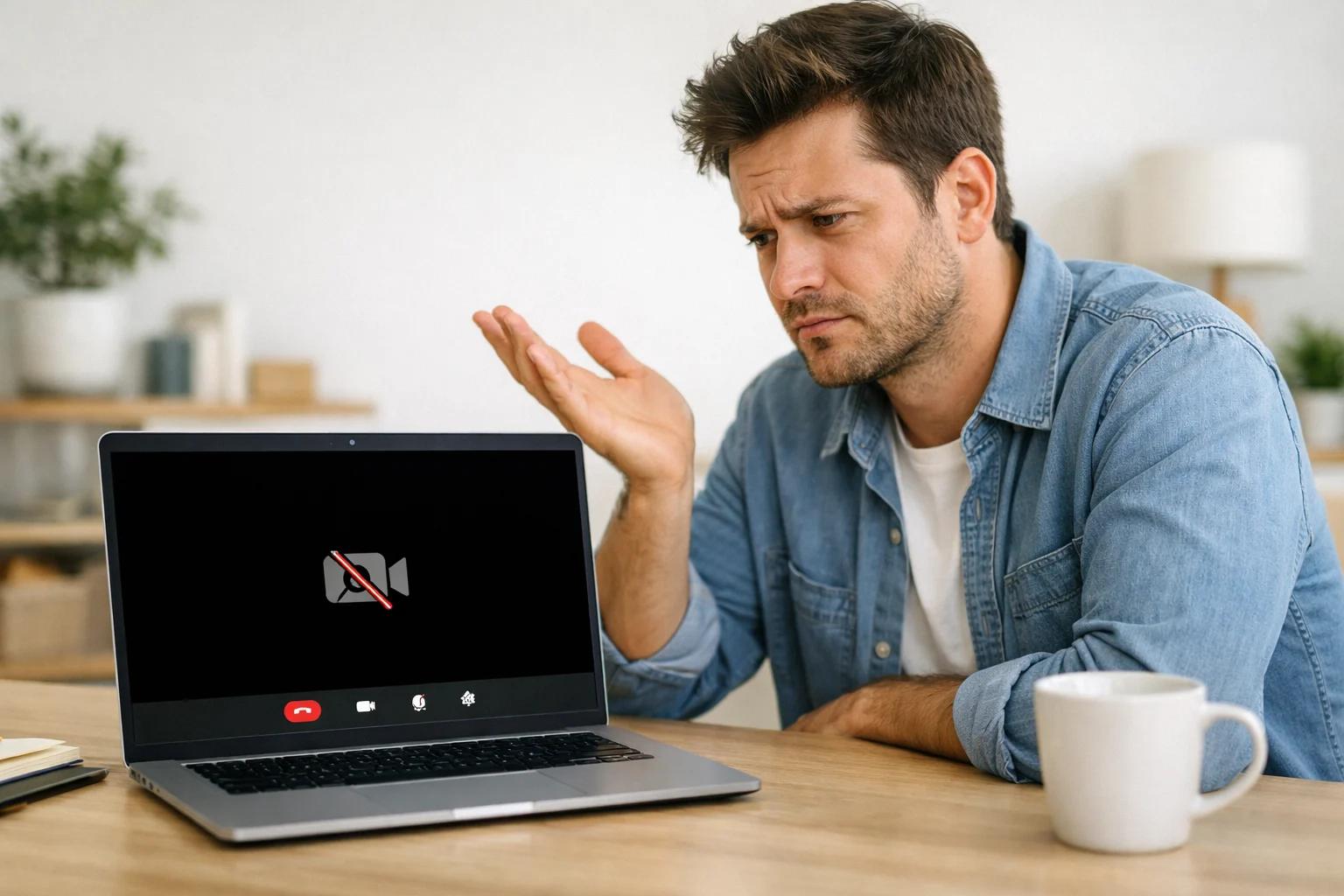
Is your laptop camera not working right when you need it most? You open Zoom or Teams for an important call, and all you see is a black screen or an error saying the camera is not detected. This is one of the most common laptop problems people face today.
A laptop webcam not working can happen on any brand — Dell, HP, Lenovo, ASUS, or MacBook. It affects laptops running Windows 10, Windows 11, and macOS. But here is the reassuring part: the problem is almost always software-related.
That means you can fix your laptop camera yourself without spending money or visiting a repair shop. This beginner-friendly guide gives you 12 proven step-by-step solutions to get your built-in camera working again in minutes.
Quick Answer
If your laptop camera is not working, do these three things first:
- Check if a physical privacy shutter is covering the lens. Slide it open.
- Go to Settings > Privacy > Camera and make sure camera access is turned on.
- Restart your laptop. This single step resolves the webcam not working issue for about 30% of users.
Still experiencing a laptop camera not working problem? Follow the complete fixes below.
Why This Problem Happens
Understanding why your laptop camera is not working helps you choose the right fix faster. Here are the most common causes:
- Privacy settings are blocking camera access on your laptop
- Another application is already using the webcam in the background
- Outdated or corrupted webcam drivers after a system update
- Physical camera shutter or privacy switch is closed
- Antivirus software blocking the built-in camera
- Windows update reset your camera permissions
- The camera is disabled in BIOS settings
- Hardware failure (rare, but possible on older laptops)
In 9 out of 10 cases, a camera not working on laptop issue is caused by settings, drivers, or app conflicts — all of which are easy to fix.
How to Fix Laptop Camera Not Working (Step-by-Step Methods)
Fix 1: Check for a Physical Camera Cover or Switch
Before diving into settings, rule out the simplest cause of a laptop camera not working.
- Look closely at the area around your camera lens.
- Slide any physical privacy shutter to the open position.
- Check the sides of your laptop for a camera toggle switch.
- Remove any tape or sticker you may have placed over the lens.
Many HP, Lenovo, and Dell laptops now include tiny privacy shutters that are easy to miss.
Fix 2: Restart Your Laptop
A quick restart clears temporary glitches that cause your webcam not working properly.
- Save all your work.
- Click the Start menu.
- Select Restart (not Shut Down).
- After restarting, open your Camera app and test it.
Restarting releases the camera from any app that was holding onto it and refreshes system processes.
Fix 3: Check Camera Privacy Settings on Windows
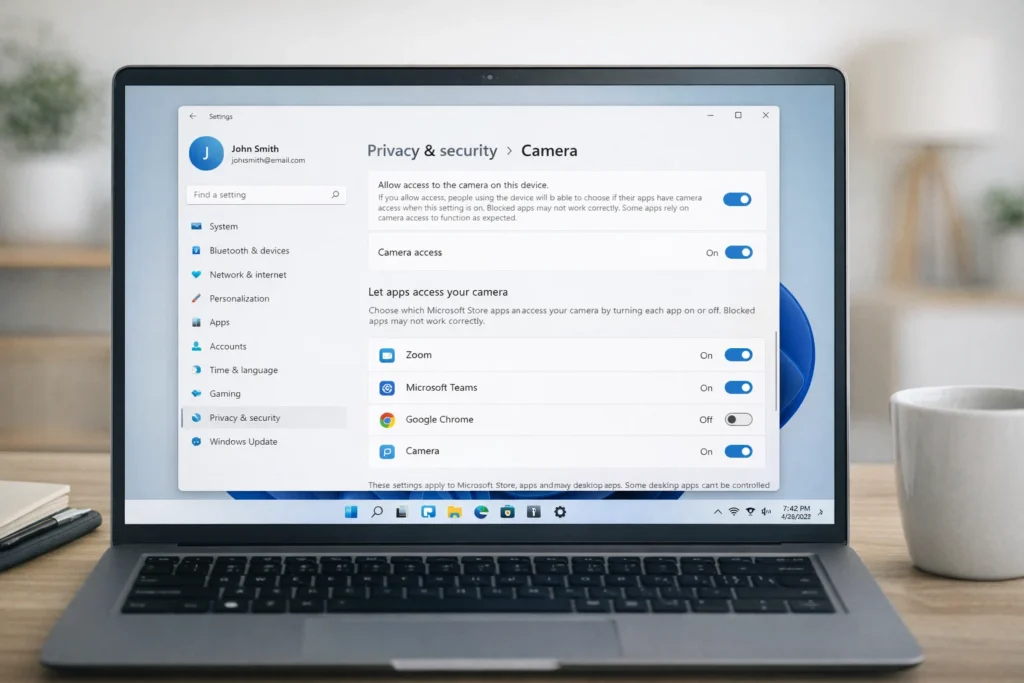
Privacy settings are the number one reason a laptop camera is not working on Windows 10 and Windows 11.
- Press Windows + I to open Settings.
- Click Privacy & Security.
- Select Camera from the left menu.
- Make sure “Camera access” is toggled On.
- Scroll down and verify the specific app you need also has camera permission.
If your webcam is not working on Windows 11 or Windows 10, this fix alone solves the problem in most cases.
Fix 4: Check Camera Privacy Settings on Mac
If your laptop camera is not working on a MacBook, macOS may be blocking access.
- Click the Apple menu > System Settings.
- Select Privacy & Security.
- Click Camera.
- Check the box next to the app that needs access (Zoom, FaceTime, Chrome, etc.).
- Restart the app and test.
Fix 5: Close Other Apps Using the Camera
Your laptop webcam can only be used by one application at a time. If another app has control of it, you will see a black screen or an error.
- Close Zoom, Skype, Microsoft Teams, Google Meet, and any other video apps.
- Press Ctrl + Shift + Esc to open Task Manager.
- Look for camera-related processes still running in the background.
- Right-click them and select End Task.
- Reopen your desired app and test the camera.
This is a common cause of the laptop camera black screen problem.
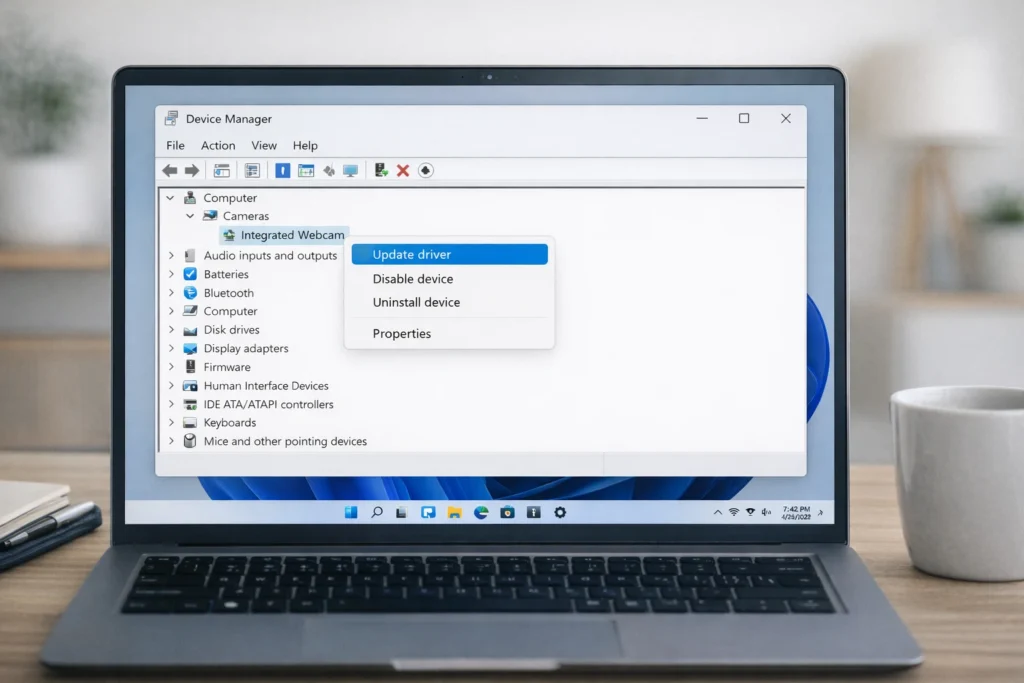
Fix 6: Update Your Camera Driver
An outdated or corrupted driver is a leading reason your laptop camera stopped working, especially after a Windows update.
- Right-click the Start button and select Device Manager.
- Expand Cameras or Imaging Devices.
- Right-click your webcam device.
- Select Update driver.
- Choose Search automatically for drivers.
- Follow the prompts and restart your laptop.
If no update is found, visit your laptop manufacturer’s website and download the latest webcam driver manually. This is one of the most reliable ways to fix a laptop camera that is not working.
Fix 7: Roll Back the Camera Driver
If your camera stopped working on laptop right after an update, the new driver may be the problem.
- Open Device Manager.
- Expand Cameras.
- Right-click your camera and select Properties.
- Click the Driver tab.
- Click Roll Back Driver (if the option is available).
- Restart your laptop and test the webcam.
Fix 8: Reinstall the Camera Driver
When updating and rolling back do not fix your laptop camera not working, a clean reinstall often does.
- Open Device Manager.
- Expand Cameras.
- Right-click your webcam and select Uninstall device.
- Check “Delete the driver software” if the option appears.
- Restart your laptop.
Windows will automatically detect and reinstall the correct camera driver on restart.
Fix 9: Run the Windows Camera Troubleshooter
Windows includes a built-in tool specifically designed to diagnose a webcam not working on your laptop.
- Go to Settings > System > Troubleshoot.
- Click Other troubleshooters.
- Find Camera and click Run.
- Follow the on-screen suggestions.
This tool automatically scans for known camera problems and applies fixes.
Fix 10: Check Your Antivirus Software
Some antivirus programs block the built-in camera as a security feature, causing your laptop camera not working issue.
- Open your antivirus software.
- Look for Privacy, Webcam Protection, or Device Access settings.
- Temporarily disable webcam protection.
- Test your camera.
- If it works, add your video app to the antivirus whitelist instead of leaving protection off.
Fix 11: Check BIOS/UEFI Settings
In rare cases, the laptop camera is not detected because it has been disabled at the hardware level in BIOS.
- Restart your laptop.
- Press F2, F10, Del, or Esc during boot (varies by manufacturer).
- Navigate to Advanced or Security settings.
- Look for Integrated Camera or Webcam.
- Set it to Enabled.
- Save changes and exit BIOS.
Fix 12: Test with the Default Camera App
Before assuming your hardware is broken, confirm the problem by testing in a different application.
- On Windows, search “Camera” in Start and open the built-in Camera app.
- On Mac, open Photo Booth or FaceTime.
- If the camera works here but not in Zoom or Teams, the issue is with that app’s settings — not your webcam.
This test helps you pinpoint exactly why your camera is not working on your laptop.
Troubleshooting Tips
🔧 Quick Laptop Camera Troubleshooting Checklist:
- Always restart your laptop before trying advanced fixes
- Test the webcam in the default Camera app first
- Check for a keyboard shortcut to enable the laptop camera (often Fn + F8 or a key with a camera icon)
- Make sure your operating system is fully updated
- If using Google Meet or another web app, try a different browser
- If using an external webcam, try a different USB port
- Check if the camera light turns on — if it does, the hardware works
Common Mistakes to Avoid
- Skipping the restart. People jump to complicated fixes when a simple reboot would resolve the laptop camera not working problem.
- Forgetting privacy settings. Windows updates frequently reset camera permissions without warning.
- Having multiple video apps open. Only one app can access your laptop webcam at a time.
- Ignoring physical shutters. These tiny sliders are easy to overlook, especially on newer laptops.
- Downloading drivers from random websites. Only use your laptop manufacturer’s official website or Windows Update to avoid malware.
- Turning off antivirus entirely. Whitelist specific apps instead of disabling all protection.
Additional Tips to Prevent the Issue
Prevent your laptop camera from not working in the future with these habits:
- Keep your operating system updated. Updates include webcam driver improvements and bug fixes.
- Update video apps regularly. Outdated versions of Zoom, Teams, and Skype cause camera conflicts.
- Create a system restore point before major updates so you can roll back quickly if your webcam stops working.
- Avoid third-party virtual camera software. These tools sometimes interfere with your built-in camera and cause detection issues.
- Run Device Manager checks monthly. Look for yellow warning icons next to your camera device to catch driver problems early.
- Note your working driver version. If everything works, write down the driver version so you can reinstall it if a future update breaks things.
Frequently Asked Questions
Why is my laptop camera showing a black screen?
A laptop camera black screen usually means another app is using the camera, the privacy shutter is closed, or camera permissions are turned off. Close all video apps, check for a physical cover, and verify your settings under Settings > Privacy > Camera.
How do I enable my camera on Windows 11?
To enable your laptop camera on Windows 11, go to Settings > Privacy & Security > Camera. Toggle “Camera access” on. Also make sure individual apps have permission. If the webcam is not working on Windows 11 after this, update the driver through Device Manager.
Why did my webcam stop working after a Windows update?
Windows updates sometimes reset privacy settings or install incompatible camera drivers. This is one of the most common reasons a laptop camera stops working. Check your camera permissions first, then try rolling back the webcam driver in Device Manager.
How do I know if my laptop camera is physically broken?
Test the camera in the built-in Camera app. Try every software fix in this guide. If your laptop camera is not working in any app after all fixes, connect an external USB webcam. If the external webcam works fine, your built-in camera likely has a hardware issue and may need professional repair.
Can I use my phone as a webcam if my laptop camera is not working?
Yes. If your laptop camera is not working and you need an immediate alternative, you can use your phone. Continuity Camera works with Mac and iPhone. Phone Link connects Windows to Android. Third-party apps like DroidCam also let you use your phone camera as a laptop webcam over Wi-Fi or USB.
Conclusion
A laptop camera not working is almost always a software issue you can solve in minutes. Start with the basics: check for a physical camera cover, restart your laptop, and verify your privacy settings. If those steps do not resolve it, move on to updating, rolling back, or reinstalling your webcam driver.
The 12 fixes in this guide cover every common cause of a webcam not working on both Windows and Mac. Work through them in order — most users find their laptop camera fix within the first five steps.
Bookmark this page so you have it ready the next time your laptop camera is not working. And if all software fixes fail, an affordable external USB webcam is a reliable backup while you arrange a hardware repair.
- Microsoft Support — Camera doesn’t work in Windows
- Apple Support — If the built-in camera isn’t working on your Mac
- Google Support — Fix camera and microphone problems in Google Meet



