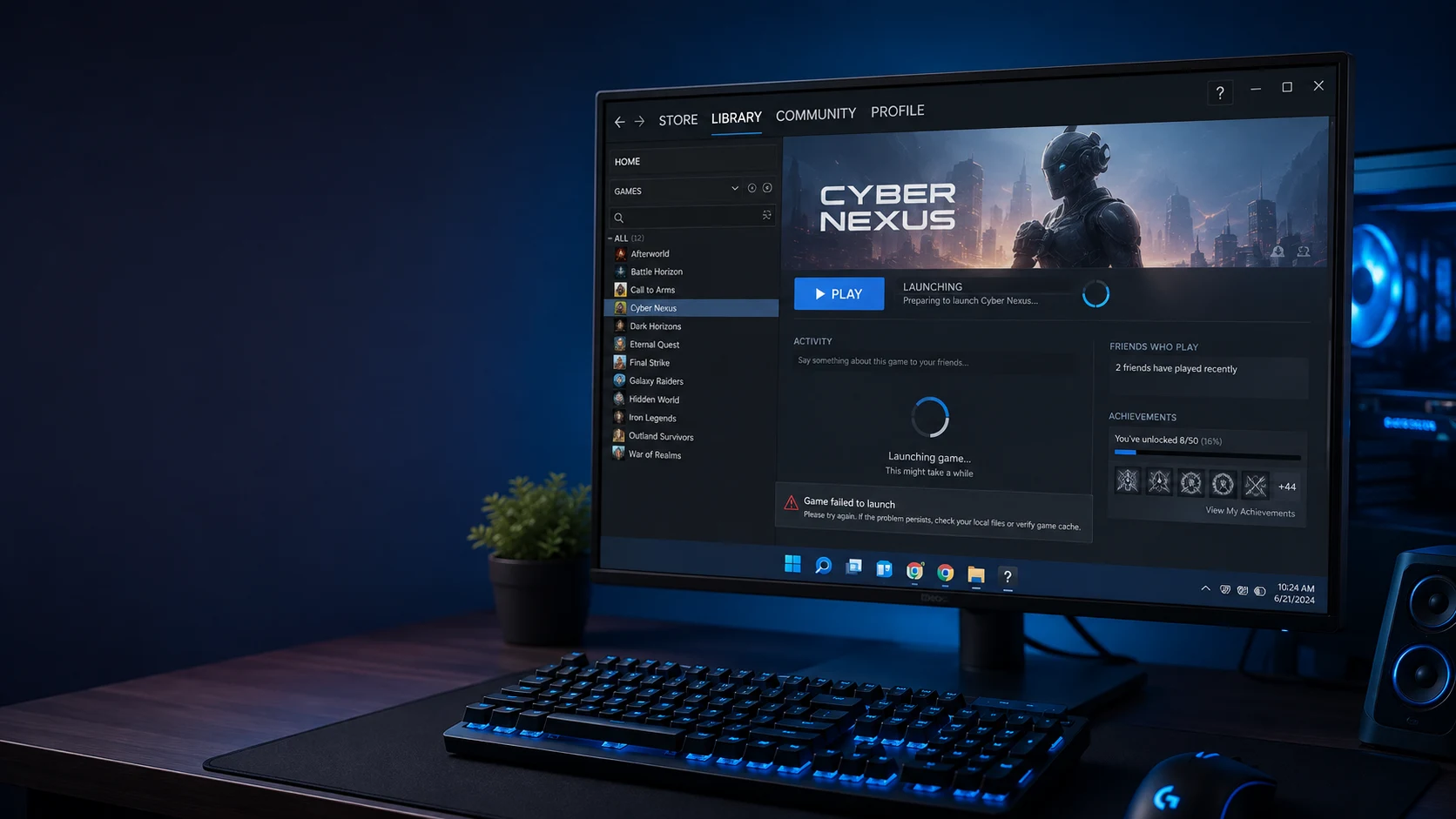
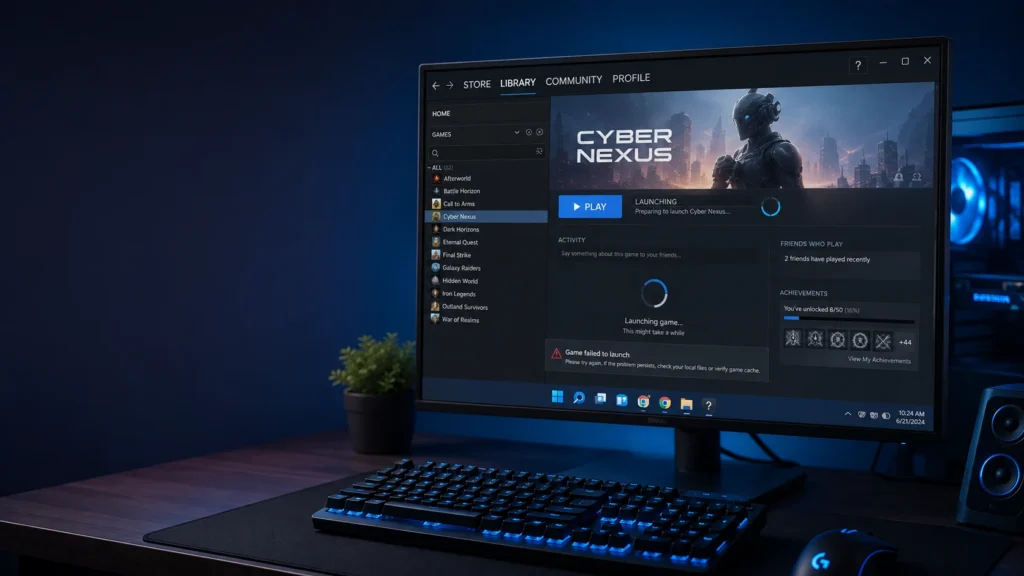
If you are dealing with Steam games not launching on Windows 11, you are not alone. You may click the Play button and nothing happens, the game may show “Running” for a few seconds and then stop, or Steam may remain stuck on “Preparing to Launch.”
This problem can happen with one game or several games in your Steam library. It may appear after a Windows update, graphics driver update, Steam update, or game update. Corrupted files, antivirus software, outdated drivers, and compatibility problems can also prevent a game from starting.
Fortunately, most Steam games not launching on Windows 11 problems can be fixed without reinstalling Windows. Start with the simple solutions below and move to the advanced fixes if necessary.
Quick Answer: How to Fix Steam Games Not Launching on Windows 11
If your Steam games won’t launch, try these solutions in order:
- Restart Steam and your PC.
- Check the game’s system requirements.
- Verify the Steam game files.
- Update Windows 11 and your graphics driver.
- Close stuck Steam and game processes.
- Run Steam as administrator.
- Check antivirus and Windows Security.
- Install or repair required game components.
- Use Windows compatibility troubleshooting.
- Reinstall the affected game.
For most users, verifying Steam game files and updating Windows and graphics drivers are the best fixes to try first.
Why Are Steam Games Not Launching on Windows 11?
There are several possible reasons why a Steam game is not launching on Windows 11. The problem does not always mean that Steam itself is broken.
Common causes include:
- Corrupted or missing game files
- Outdated graphics drivers
- Pending Windows updates
- A stuck Steam or game process
- Antivirus software blocking a game file
- Missing DirectX or Visual C++ components
- Compatibility problems with older games
- PC hardware that does not meet the game’s requirements
- Conflicting background applications
- Problems caused by a recent game or Windows update
Steam’s own troubleshooting guide recommends checking Windows and driver updates, verifying game files, disabling non-essential software, and checking the game’s system requirements when a game does not launch.
Older games can also have compatibility problems after Windows changes. Microsoft explains that changes to Windows architecture, security features, or system requirements can cause older applications to stop working correctly.
How to Fix Steam Games Not Launching on Windows 11
1. Restart Steam and Your PC
The first thing to try when Steam games won’t launch on Windows 11 is a complete restart.
Sometimes Steam or the game remains running in the background after a crash. Restarting your computer clears these temporary processes.
Steps:
- Close the game if it is open.
- Exit Steam completely.
- Restart your Windows 11 PC.
- Open Steam again.
- Go to Library.
- Select the affected game.
- Click Play.
If the game starts normally after restarting, the problem was probably caused by a temporary background process.
2. Check the Game’s System Requirements
If only one Steam game is not launching, check whether your computer meets the game’s minimum requirements.
Open the game’s Steam Store page and look at:
- Operating system
- Processor
- RAM
- Graphics card
- Storage space
- DirectX requirements
- 64-bit requirements
Steam recommends checking the game’s system requirements because a PC that is at or below the minimum requirements can experience launch and performance problems.
For example, a newer AAA game may require a dedicated NVIDIA or AMD graphics card, while an older game may work with integrated graphics.
If your computer does not meet the minimum requirements, software troubleshooting may not solve the problem completely.
Screenshot suggestion: Show the System Requirements section of a Steam game page.
3. Verify the Steam Game Files
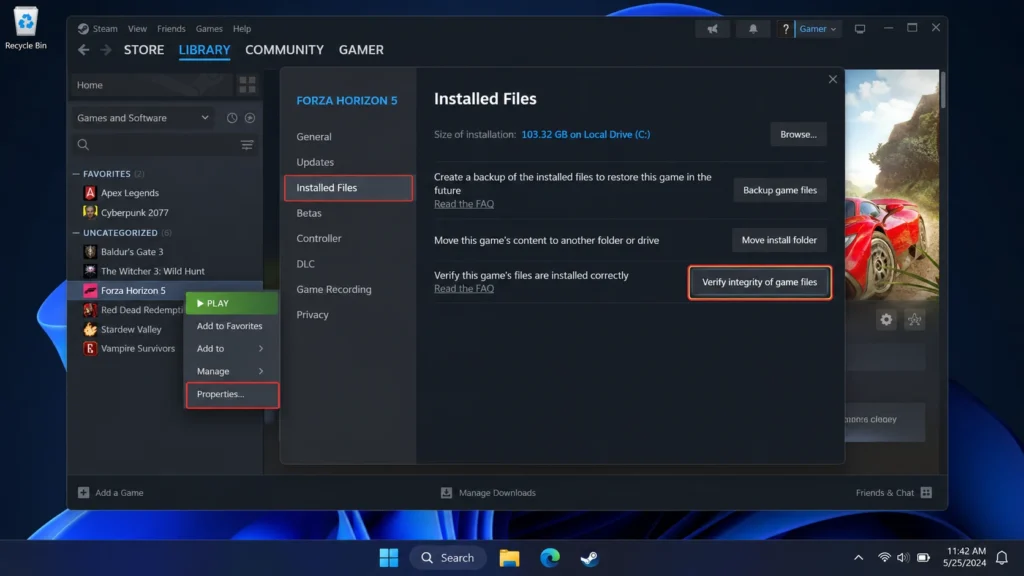
One of the most effective fixes for Steam games not launching on Windows 11 is verifying the game’s files.
Game files can become corrupted or missing because of interrupted downloads, failed updates, storage problems, or security software.
Steam provides a built-in verification tool that checks whether the game files are installed correctly.
Steps:
- Open Steam.
- Go to Library.
- Right-click the game that won’t launch.
- Select Properties.
- Click Installed Files.
- Select Verify integrity of game files.
- Wait for Steam to finish.
- Restart Steam.
- Try launching the game.
The process may take several minutes.
Steam also notes that some files may fail verification because they are local configuration files. This does not necessarily mean something is wrong.
Why this works: If important game files are damaged or missing, Steam can replace the affected files and restore the game installation.
Screenshot suggestion: Add a screenshot showing Properties → Installed Files → Verify integrity of game files.
4. Update Windows 11 and Your Graphics Driver
Outdated Windows components or graphics drivers can cause Steam games not starting correctly.
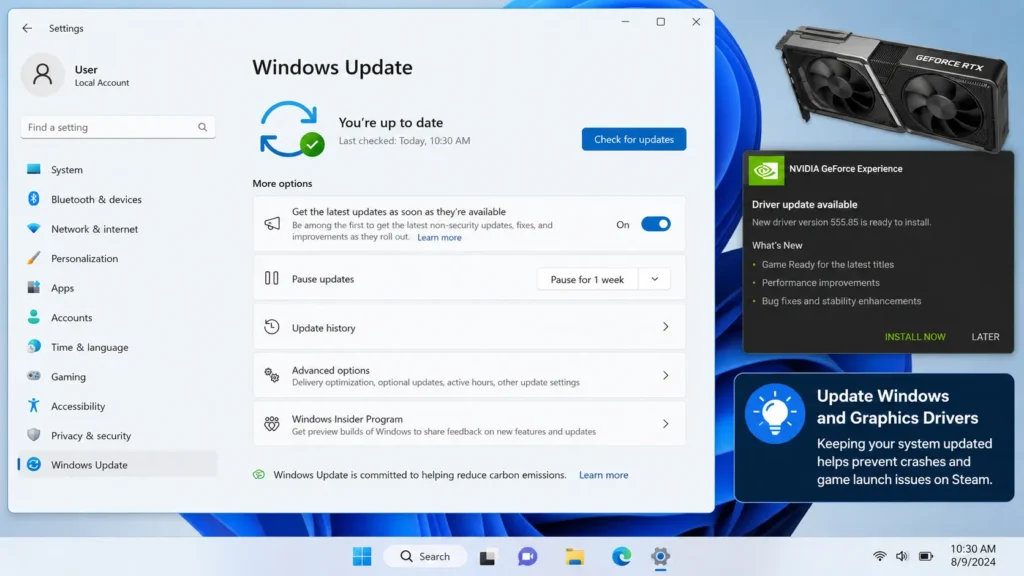
Graphics drivers allow Windows to communicate with your graphics card. Windows Update can provide recommended drivers, including drivers for video cards.
Update Windows 11:
- Press Windows + I.
- Select Windows Update.
- Click Check for updates.
- Install available updates.
- Restart your computer.
You should also check for graphics driver updates from your GPU manufacturer.
Common graphics manufacturers include:
- NVIDIA
- AMD
- Intel
After installing a graphics driver update, restart your PC and test the Steam game again.
Why this works: Games depend heavily on graphics drivers. A damaged or outdated driver can cause a game to close immediately after launching.
Screenshot suggestion: Show Settings → Windows Update.
5. Close Stuck Steam or Game Processes
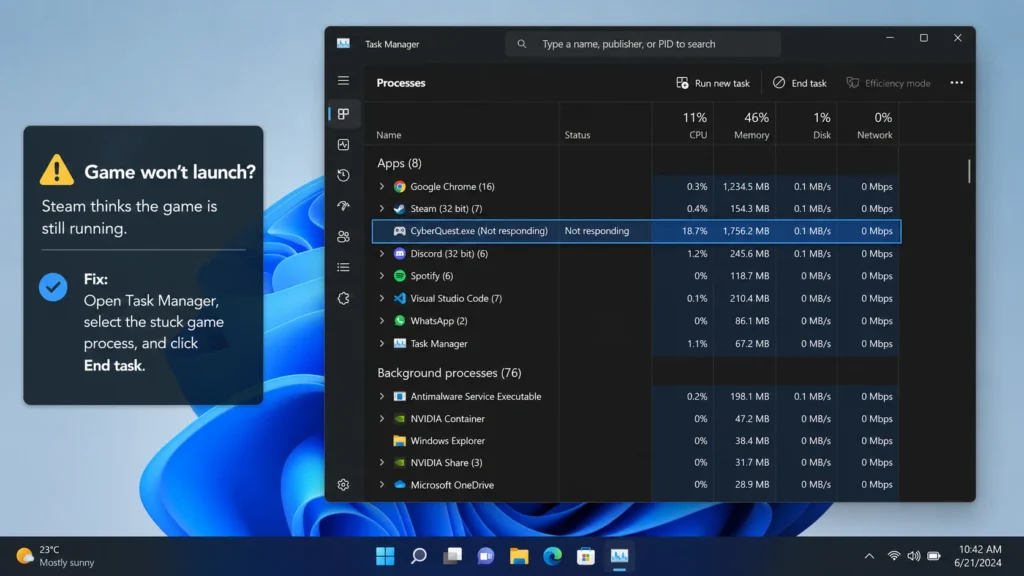
Sometimes Steam says a game is running, but you cannot see the game window.
This usually means the game process started but became stuck or crashed during startup.
Steps:
- Press Ctrl + Shift + Esc.
- Open Task Manager.
- Look under Processes.
- Find the affected game.
- Select it.
- Click End task.
- Close Steam if necessary.
- Open Steam again.
- Launch the game.
Be careful when using Task Manager. Only close the Steam or game process you recognize.
Why this works: Ending a stuck process allows Steam to start the game again from a clean state.
Screenshot suggestion: Show Task Manager with a game process selected.
6. Run Steam as Administrator
Windows permissions can sometimes prevent Steam or a game from accessing certain files.
Try running Steam as administrator to see whether permissions are causing the problem.
Steps:
- Close Steam.
- Find the Steam shortcut.
- Right-click it.
- Select Run as administrator.
- Click Yes when Windows asks for permission.
- Try launching the game.
If the game starts, the issue may be related to file or folder permissions.
You do not necessarily need to permanently run Steam as administrator. Use this mainly as a troubleshooting test.
7. Check Antivirus and Windows Security
Antivirus software can sometimes block or quarantine legitimate game files.
This can result in a Steam game not opening or an error such as Missing Executable.
Steam explains that antivirus software can sometimes delete or block game files and recommends restoring legitimate files and then verifying the game files again.
Check your antivirus:
- Open your antivirus program.
- Find Quarantine, Threat History, or Blocked Items.
- Check whether a Steam game file has been blocked.
- If you are certain the file is legitimate, follow your antivirus software’s instructions to restore it.
- Verify the game files again in Steam.
Do not permanently disable antivirus protection just to make a game work.
If you are unsure whether a file is safe, keep it blocked and check the game’s official support page.
8. Install Required Game Components
Some Steam games require additional Windows components to launch.
These may include:
- DirectX
- Microsoft Visual C++ Redistributable
- PhysX
- Other game-specific components
Steam explains that many games include secondary installers for components such as DirectX, PhysX, and C++ components. If these installers are blocked or canceled, the game may not launch correctly.
What to do:
- Open the game’s installation folder.
- Look for folders containing installers.
- Check for DirectX or Visual C++ installers.
- Run the required installer.
- Restart Windows.
- Try launching the game again.
Do not download random DLL files from unknown websites. Use Steam, Microsoft, or the game’s official publisher whenever possible.
9. Use Windows Compatibility Troubleshooter
Older games can have problems running on Windows 11.
Microsoft provides a Program Compatibility Troubleshooter for older applications that may not work correctly with newer versions of Windows.
Steps:
- Open Settings.
- Select System.
- Select Troubleshoot.
- Choose Other troubleshooters.
- Find Program Compatibility Troubleshooter.
- Click Run.
- Follow the instructions.
Microsoft specifically recommends this tool when older programs have compatibility problems.
Why this works: Older games may depend on settings or Windows behavior that has changed in newer versions of Windows.
Screenshot suggestion: Show the Program Compatibility Troubleshooter in Windows 11.
10. Reinstall the Game
If none of the previous solutions fix the Steam game not launching problem, reinstall the affected game.
Reinstalling replaces the game’s complete installation and can fix files that verification could not resolve.
Steps:
- Open Steam.
- Go to Library.
- Right-click the affected game.
- Select Manage.
- Click Uninstall.
- Restart Steam.
- Install the game again.
- Try launching it.
Before uninstalling, check whether the game stores save files locally. Some games use Steam Cloud, while others may store saves on your computer.
If several Steam games are not launching, do not immediately reinstall every game. A system-wide issue with Windows, drivers, security software, or Steam itself may be responsible.
Additional Tips to Prevent Steam Launch Problems
Once you fix Steam games not launching on Windows 11, a few simple habits can help prevent the problem from returning.
- Keep Windows 11 updated.
- Keep your graphics drivers updated.
- Allow Steam game updates to finish completely.
- Avoid shutting down your PC while a game is updating.
- Keep enough free storage space.
- Avoid downloading DLL files from unknown websites.
- Keep antivirus protection enabled.
- Avoid running unnecessary background applications.
- Restart your PC after major Windows or driver updates.
- Check system requirements before installing demanding games.
If only one game repeatedly fails after updates, check that game’s official Steam support page or community discussions for game-specific issues.
Troubleshooting Tips
Technician Tip: Test the game after each major fix instead of changing several settings at once.
Use this troubleshooting order:
Restart → Check requirements → Verify game files → Update Windows/drivers → Close stuck processes → Check antivirus → Repair required components → Compatibility troubleshooting → Reinstall
If only one Steam game won’t launch, concentrate on that game’s files, requirements, compatibility settings, and required components.
If all Steam games won’t launch, focus on Windows updates, graphics drivers, Steam processes, antivirus software, and other system-wide problems.
Steam also recommends disabling non-essential software because some background applications can interfere with Steam or games.
Common Mistakes to Avoid
Don’t delete random Steam files
Avoid deleting Steam folders unless you know exactly what they contain. You could accidentally remove installed games or important configuration files.
Don’t download random DLL files
If Windows reports a missing DLL, do not immediately download that DLL from an unknown website. Use official Microsoft, Steam, or game-publisher sources instead.
Don’t permanently disable antivirus protection
Security software can occasionally interfere with games, but permanently disabling it creates unnecessary security risks.
Don’t reinstall Windows too quickly
A Steam game not launching on Windows 11 usually does not mean that Windows needs to be reinstalled.
Try the simpler solutions first.
Don’t change everything at once
If you update drivers, change compatibility settings, disable antivirus, and reinstall the game at the same time, you won’t know which solution fixed the problem.
Change one thing at a time.
Frequently Asked Questions
Why are my Steam games not launching on Windows 11?
Steam games may not launch because of corrupted game files, outdated drivers, Windows compatibility problems, blocked files, missing components, or stuck background processes. Start by restarting your PC and verifying the game’s files.
How do I fix a Steam game that won’t launch?
Open Steam, go to Library, right-click the game, select Properties → Installed Files, and click Verify integrity of game files. Steam will check the installation and repair missing or damaged files.
Why does Steam say my game is running but nothing happens?
The game process may be stuck in the background. Open Task Manager using Ctrl + Shift + Esc, find the game process, select End task, restart Steam, and try again.
Can Windows 11 cause Steam games to stop working?
Yes. Older games and applications can experience compatibility problems after Windows changes or updates. Microsoft provides a Program Compatibility Troubleshooter to help with older applications.
Should I reinstall Steam if my games won’t launch?
Not immediately. First verify the game files, update Windows and graphics drivers, close stuck processes, check antivirus software, and troubleshoot compatibility. Reinstalling Steam should be considered only after simpler troubleshooting steps fail.
Conclusion
When you have Steam games not launching on Windows 11, there is usually a practical solution that does not require reinstalling Windows.
Start with the simplest fixes: restart Steam and your PC, check the game’s system requirements, verify the Steam game files, and update Windows and your graphics driver.
If the game still won’t open, check stuck processes, antivirus protection, missing game components, and Windows compatibility settings. Reinstall the affected game only after trying the other methods.
The most important troubleshooting rule is to test the game after each fix. This helps you identify the real cause and prevents unnecessary changes to your Windows installation.
Internal Linking
How to Fix Game Lag on Android: 11 Proven Methods (Step-by-Step)
Laptop Fan Running Loud All The Time Fix (Beginner-Friendly Guide)
Laptop Battery Draining Fast? 9 Easy Fixes That Actually Work (2026)
External Authority Sources
Steam Support
Use Steam’s official guide for games that remain stuck after Preparing to Launch.
Steam Support – Games do not run after “Preparing to Launch”
Microsoft Support
Use Microsoft’s official compatibility troubleshooting guide for older applications and games on Windows 11.
Microsoft Support – Make older apps compatible with Windows
Microsoft Driver Support
Use Microsoft’s official guide for recommended Windows hardware and driver updates.
Microsoft Support – Automatically get recommended hardware drivers