Laptop Screen Flickering Fix: 10 Easy Solutions That Actually Work (2026)

Introduction

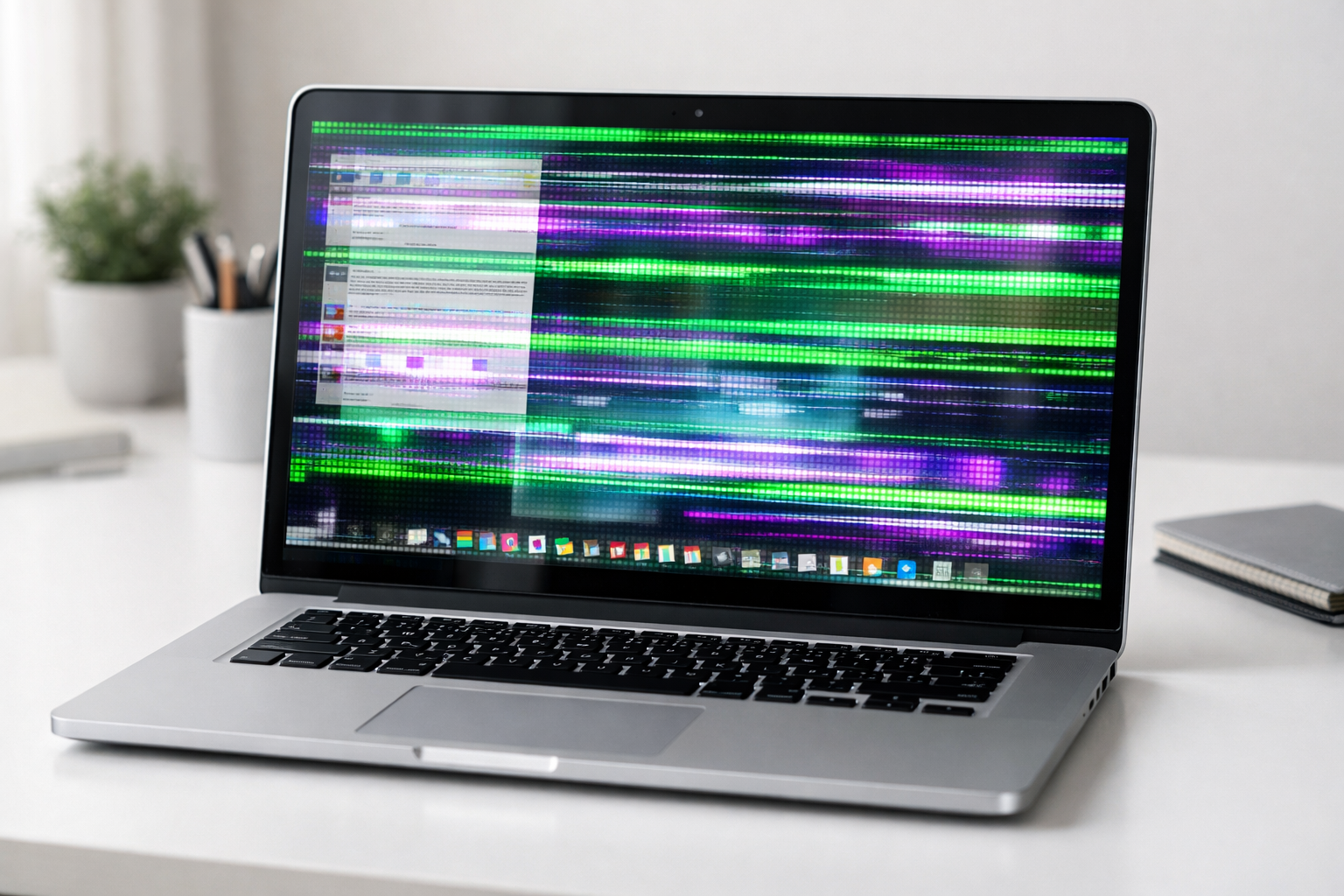
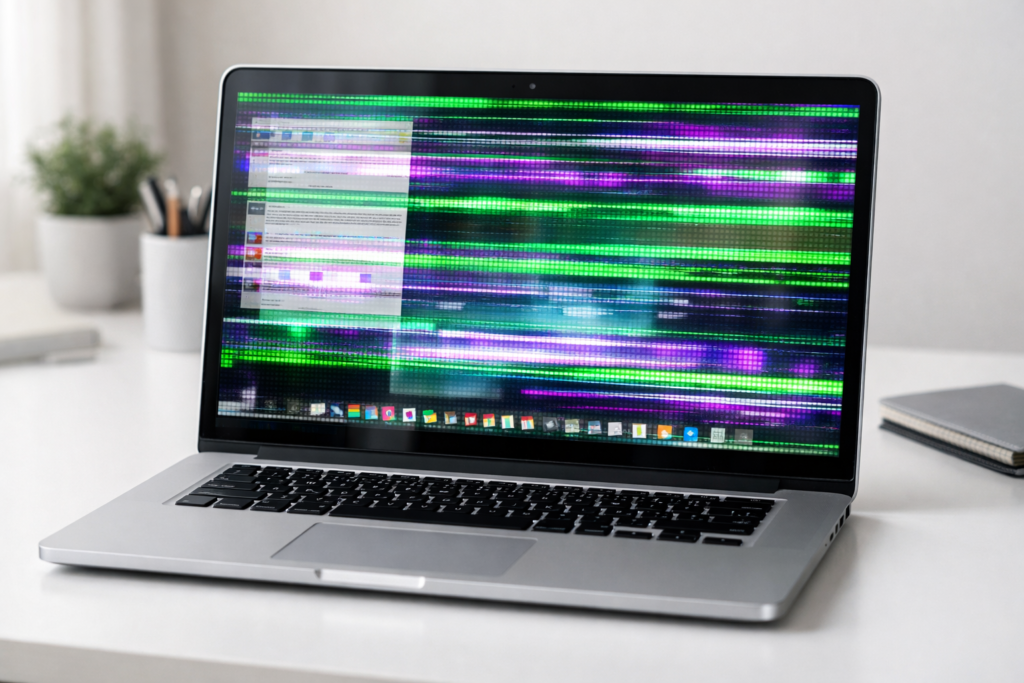
Laptop screen flickering is one of the most common and frustrating display problems users face today. One moment your screen looks perfectly fine, and the next it starts flashing, blinking, or showing strange horizontal lines. It makes working, browsing, or watching videos nearly impossible.

Screen flickering on laptop devices can happen on any brand — Dell, HP, Lenovo, ASUS, Acer, or MacBook. Sometimes laptop screen flickering starts out of nowhere. Other times, it gradually gets worse over days or weeks. Either way, you need it fixed fast.

The good news? Most causes of laptop screen flickering are easy to fix at home without spending a single dollar. You usually don’t need a repair shop. This complete laptop screen flickering fix guide walks you through every solution step by step, using plain language anyone can follow — even if you’re not tech-savvy at all.

Quick Answer

In most cases, laptop screen flickering is caused by outdated display drivers, an incorrect refresh rate, or a problematic app. Start by updating your display driver, adjusting your screen refresh rate, and disabling hardware acceleration in your browser. These three steps alone resolve laptop display flickering for the majority of users.

Why Laptop Screen Flickering Happens

Before jumping into fixes, understanding why laptop screen flickering occurs helps you pick the right solution faster. Here are the most common causes:

  • Outdated or corrupted display drivers — This is the #1 reason behind laptop screen flickering. When driver software is broken or old, it causes display glitches immediately.
  • Incorrect refresh rate — Your screen refreshes many times per second. If this setting is wrong, screen flickering on laptop devices becomes constant.
  • Incompatible or conflicting apps — Certain programs interfere with display settings and trigger laptop screen flashing.
  • Hardware acceleration conflicts — Browsers and apps sometimes use your graphics card in ways that cause laptop display flickering.
  • Loose or damaged display cable — The ribbon cable connecting your screen to the motherboard can come loose, especially after drops or rough handling.
  • Failing backlight or screen panel — In older laptops, the display hardware itself may be wearing out.
  • Malware or viruses — Rarely, malicious software can interfere with display functions and cause screen flickering on laptop computers.
  • Windows update bugs — A recent system update can sometimes introduce display problems, including laptop screen flickering.

How to Fix Laptop Screen Flickering (Step-by-Step Methods)

Here are 10 proven methods to fix laptop screen flickering. Work through them one at a time for best results.

Fix 1: Run the Task Manager Test First

Before trying anything else, determine whether your laptop screen flickering is caused by a driver or an app.

  1. Press Ctrl + Shift + Esc to open Task Manager.
  2. Watch the Task Manager window carefully for 30 seconds.
  3. If Task Manager flickers too → It’s a driver problem (go to Fix 2).
  4. If Task Manager does NOT flicker → It’s an app problem (go to Fix 6).

This quick test saves you time by pointing you toward the right laptop screen flickering fix immediately.
Fix 2: Update Your Display Driver

An outdated display driver is the single most common cause of laptop screen flickering.

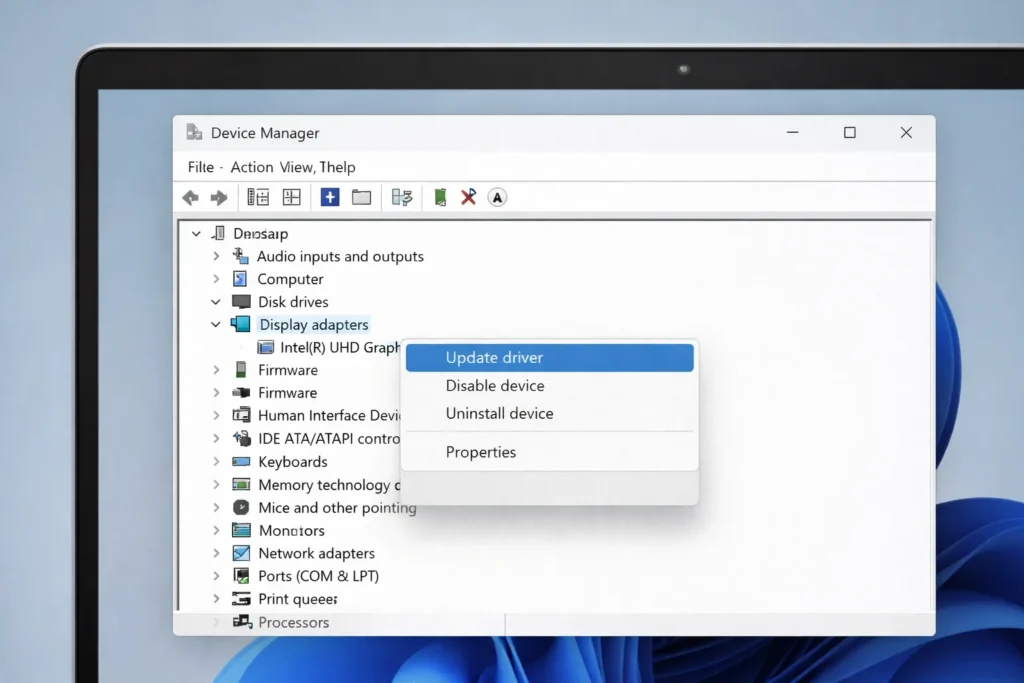
  1. Right-click the Start button and select Device Manager.
  2. Expand Display adapters.
  3. Right-click your graphics card (Intel, NVIDIA, or AMD).
  4. Click Update driver.
  5. Select Search automatically for drivers.
  6. Follow the on-screen prompts.
  7. Restart your laptop after the update completes.

This one step alone resolves laptop display flickering for a huge percentage of users.

Fix 3: Reinstall Your Display Driver Completely

If updating didn’t stop screen flickering on laptop, a clean reinstall often solves deeper driver corruption.

  1. Open Device Manager again.
  2. Expand Display adapters.
  3. Right-click your graphics card and select Uninstall device.
  4. Check the box that says Delete the driver software for this device.
  5. Click Uninstall.
  6. Restart your laptop. Windows will automatically reinstall a fresh, clean driver.

Check if the laptop screen flickering has stopped after the reboot.

Fix 4: Change the Screen Refresh Rate

A wrong refresh rate is a frequent cause of screen flickering on laptop displays, especially after updates.

  1. Right-click on your desktop and select Display settings.
  2. Scroll down and click Advanced display settings.
  3. Find the Refresh rate dropdown menu.
  4. Try selecting a different rate (e.g., switch from 60Hz to 59Hz, or vice versa).
  5. Click Apply and observe whether the laptop screen flickering stops.

This fix works especially well for screen flickering Windows 10 and screen flickering Windows 11 systems.

Fix 5: Disable Hardware Acceleration in Your Browser

If your laptop screen flickering only happens in Chrome, Edge, or Firefox, hardware acceleration is likely the culprit.

For Google Chrome:

  1. Open Chrome → click the three-dot menu (top right).
  2. Go to Settings → System.
  3. Toggle off Use hardware acceleration when available.
  4. Click Relaunch.

For Microsoft Edge:

  1. Open Edge → click the three-dot menu.
  2. Go to Settings → System and performance.
  3. Toggle off Use hardware acceleration when available.
  4. Restart the browser.

This is one of the most overlooked solutions for laptop screen flashing during web browsing.

Fix 6: Uninstall Problematic Apps

If laptop screen flickering started right after installing a new program, that app is likely causing the conflict.

  1. Open Settings → Apps → Installed apps.
  2. Sort by Install date to find recently added programs.
  3. Uninstall any app installed right before the flickering began.
  4. Restart your laptop and check if the problem is resolved.

Common culprit apps include:

  • Antivirus programs (Norton, McAfee, Avast)
  • Screen recording or screenshot tools
  • Desktop wallpaper or customization software
  • Gaming overlay applications

Fix 7: Run the Windows Troubleshooter

Windows has a built-in tool specifically designed to detect and fix screen flickering issues automatically.

  1. Go to Settings → System → Troubleshoot.
  2. Click Other troubleshooters.
  3. Find and run the Hardware and Devices troubleshooter.
  4. Follow the instructions and apply any recommended fixes.
  5. Restart your laptop.

Fix 8: Check and Adjust Power Settings

Incorrect power settings can sometimes trigger laptop screen flickering, especially when switching between battery and charging modes.

  1. Go to Settings → System → Power & battery.
  2. Under Power mode, switch to Best performance.
  3. Click Additional power settings → Change plan settings → Change advanced power settings.
  4. Expand Display and ensure adaptive brightness is turned off.
  5. Click Apply and restart.

Fix 9: Scan for Malware

Although rare, malware can cause laptop display flickering and other strange screen behavior.

  1. Open Windows Security (search for it in the Start menu).
  2. Click Virus & threat protection.
  3. Click Full scan for a thorough check.
  4. Remove any threats found.
  5. Restart your laptop and check if the laptop screen flickering is gone.

Fix 10: Check Your Display Cable (Advanced)

If absolutely no software fix works, the physical cable inside your laptop may be loose or damaged.

  • Open and close your laptop lid slowly. If laptop screen flickering changes, worsens, or stops when you move the lid to certain angles, the display cable is likely the issue.
  • This fix requires opening your laptop. If you’re not comfortable doing this, take it to a professional repair technician.
  • For laptops still under warranty, contact the manufacturer first before opening the device.

Troubleshooting Tips

💡 Quick Troubleshooting Checklist for Laptop Screen Flickering:

✅ Always restart your laptop first. A simple reboot fixes many screen flickering issues instantly.

✅ Boot into Safe Mode to test. If laptop screen flickering stops in Safe Mode, the problem is 100% software-related.

✅ Connect an external monitor. If the external screen doesn’t flicker, your laptop display or its internal cable is the problem.

✅ Check for Windows Updates. Go to Settings → Windows Update → Check for updates. Microsoft regularly releases patches for display bugs.

✅ Temporarily lower your screen resolution to see if the behavior changes.

✅ Try a system restore to roll back to a date before the laptop screen flickering started.


Common Mistakes to Avoid

Many people make these errors when trying to fix laptop screen flickering:

  • Skipping driver updates. This is the easiest and most effective laptop screen flickering fix, yet it’s the most commonly skipped step.
  • Downloading drivers from random websites. Only download drivers from your laptop manufacturer’s official site or through Windows Update. Unofficial drivers can make laptop screen flickering worse.
  • Assuming it’s always hardware. Over 80% of screen flickering on laptop devices is caused by software. Don’t rush to replace your screen.
  • Forgetting to restart. Many fixes only take effect after a full reboot.
  • Changing brightness to fix flickering. Screen brightness and laptop screen flickering are two completely different issues. Adjusting brightness won’t fix a driver-related flicker.
  • Applying multiple fixes at once. Change one thing at a time so you know exactly which solution resolved your laptop screen flickering.

Additional Tips to Prevent Laptop Screen Flickering

Once you’ve successfully applied a laptop screen flickering fix, follow these tips to prevent it from returning:

  • Keep your display drivers updated. Check for updates at least once a month to prevent laptop screen flickering before it starts.
  • Avoid installing unnecessary software. Fewer apps mean fewer potential conflicts that cause laptop display flickering.
  • Keep Windows updated. System updates often include critical fixes for display stability.
  • Handle your laptop carefully. Avoid slamming the lid shut. This protects the display cable from damage that causes screen flickering on laptop devices.
  • Use a cooling pad. Overheating can trigger display issues. Good ventilation helps prevent laptop screen flickering.
  • Run regular malware scans. Prevention is always better than troubleshooting.
  • Create a system restore point before making big changes. This lets you roll back quickly if something causes laptop screen flickering again.

Frequently Asked Questions

Why is my laptop screen flickering all of a sudden?

Sudden laptop screen flickering is usually caused by a corrupted display driver, a recent Windows update, or a newly installed app conflicting with your display settings. Start by updating or reinstalling your display driver through Device Manager. This single step resolves most sudden laptop screen flickering cases.

Can laptop screen flickering damage my eyes or my laptop?

Laptop screen flickering itself won’t damage internal components. However, prolonged exposure to a flickering screen can cause eye strain, headaches, and fatigue. If the cause is a hardware fault, ignoring it may eventually lead to complete screen failure.

How do I fix screen flickering on Windows 11?

The fixes for screen flickering Windows 11 are the same as Windows 10. Update your display driver through Device Manager, adjust the refresh rate in Display Settings, and disable hardware acceleration in your browser. Use the Task Manager test from Fix 1 in this guide to determine the exact cause.

Does laptop screen flickering mean I need a new screen?

Almost never. The vast majority of laptop screen flickering cases are software-related and completely free to fix. Only consider a screen replacement if you’ve exhausted all software fixes and confirmed the issue persists even on an external monitor, or if it changes based on lid position (cable issue).

How do I stop my laptop screen from flickering when charging?

If laptop screen flickering only occurs while plugged in, your power adapter may be supplying unstable power. Try a different genuine charger or a different wall outlet. Also go to Settings → System → Power & battery and switch between power modes. Disabling adaptive brightness can also stop screen flickering on laptop while charging.


Conclusion

Laptop screen flickering is incredibly frustrating, but the fix is almost always simpler than you think. In most cases, updating your display driver, adjusting the refresh rate, or removing a conflicting app is all it takes.

Start with the Task Manager test to identify whether your laptop screen flickering is caused by a driver or an app. Then work through the 10 solutions in this guide one at a time. Most users find their laptop screen flickering fix within the first three methods.

If you’ve tried every software solution and the laptop screen flickering still persists, it’s likely a hardware issue — a loose display cable or a failing panel. At that point, contact your laptop manufacturer or visit a certified repair center.

Don’t let a flickering screen slow you down. Follow this guide, apply the right fix, and enjoy a stable, flicker-free display again.


External authority sources

Other problem solutions from this Blogger.

Leave a Reply

Your email address will not be published. Required fields are marked *