
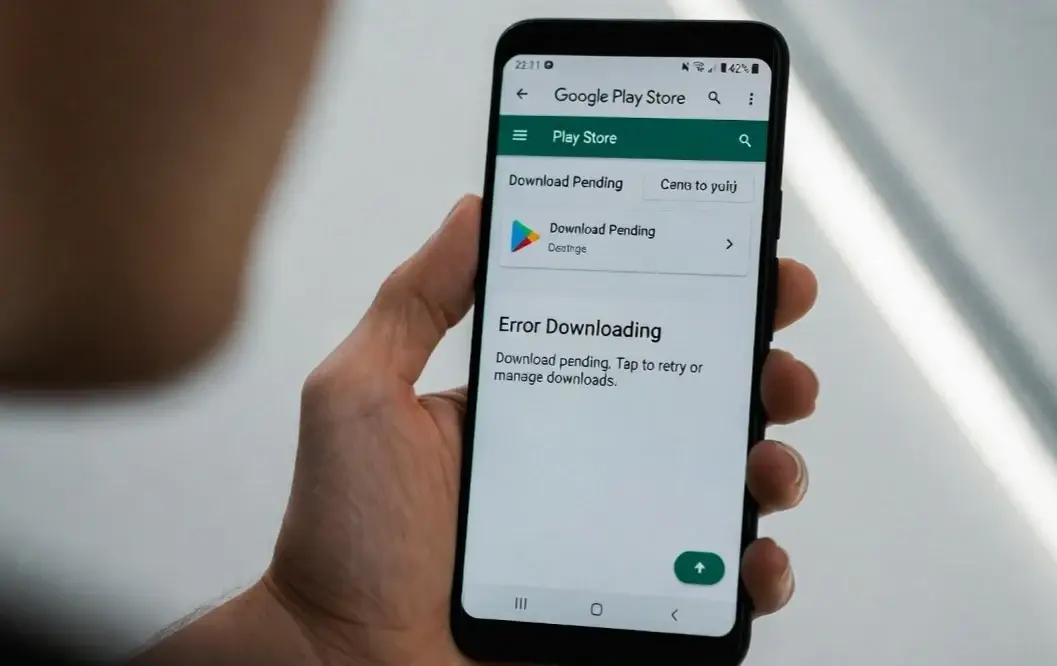
If your Android apps are not installing from Play Store, you are not alone. This is a very common issue for Android users, especially on Samsung, Xiaomi, Realme, OnePlus, and other devices.
Sometimes the download gets stuck at “Pending.”
Sometimes it shows an error like “Can’t install app” or “Download failed.”
In other cases, nothing happens at all.
The good news? Most Play Store installation problems are easy to fix. You do not need technical skills. In this guide, I will walk you through simple, step-by-step solutions like a technician helping you in person.
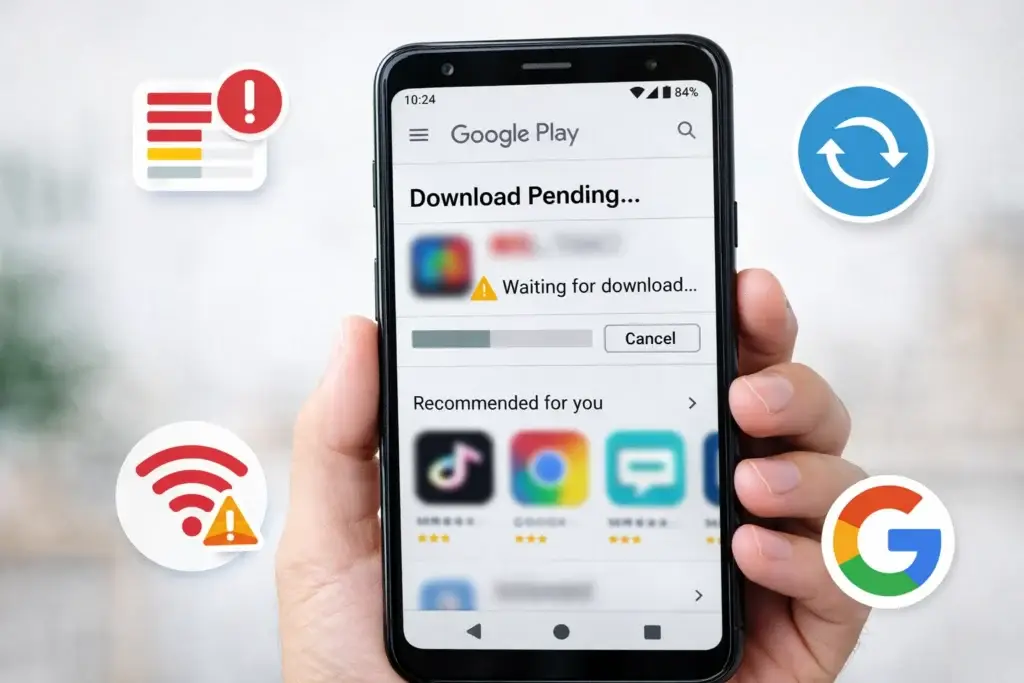
✅ Quick Answer: Android Apps Not Installing From Play Store Fix
If Android apps are not installing:
- Restart your phone
- Check your internet connection
- Clear Play Store cache
- Check storage space
- Update Android System WebView & Google Play Services
In most cases, clearing the Play Store cache fixes the issue.
Why This Problem Happens
Understanding the cause helps you fix it faster.
Here are the most common reasons:
| Problem | Why It Happens | Result |
|---|---|---|
| Poor Internet | Weak Wi-Fi or mobile data | Download stuck on “Pending” |
| Low Storage | Not enough space | Installation fails |
| Corrupted Cache | Play Store temporary files damaged | App won’t install |
| Outdated Software | Old Android version | Compatibility errors |
| Google Account Issue | Sync error | Download fails |
On Samsung phones, this may happen after a system update.
On Xiaomi devices, battery saver or security apps may block downloads.
Now let’s fix it step-by-step.
How to Fix Android Apps Not Installing From Play Store
Start with the easiest solution first.
1️⃣ Restart Your Phone (First Thing to Try)
This sounds simple, but it works often.
Steps:
- Press and hold the Power button.
- Tap Restart.
- Wait for the phone to turn back on.
- Try installing the app again.
Why This Works
Restarting clears temporary system errors and refreshes background services that may block Play Store downloads.
2️⃣ Check Your Internet Connection
If apps are stuck on “Pending,” internet is usually the issue.
Steps:
- Switch between Wi-Fi and Mobile Data.
- Turn Airplane Mode ON, wait 10 seconds, turn it OFF.
- Restart your Wi-Fi router if needed.
Why This Works
Play Store needs a stable connection to download apps. Weak signals interrupt installation.
✅ Try opening YouTube. If videos don’t load, your internet is the problem.
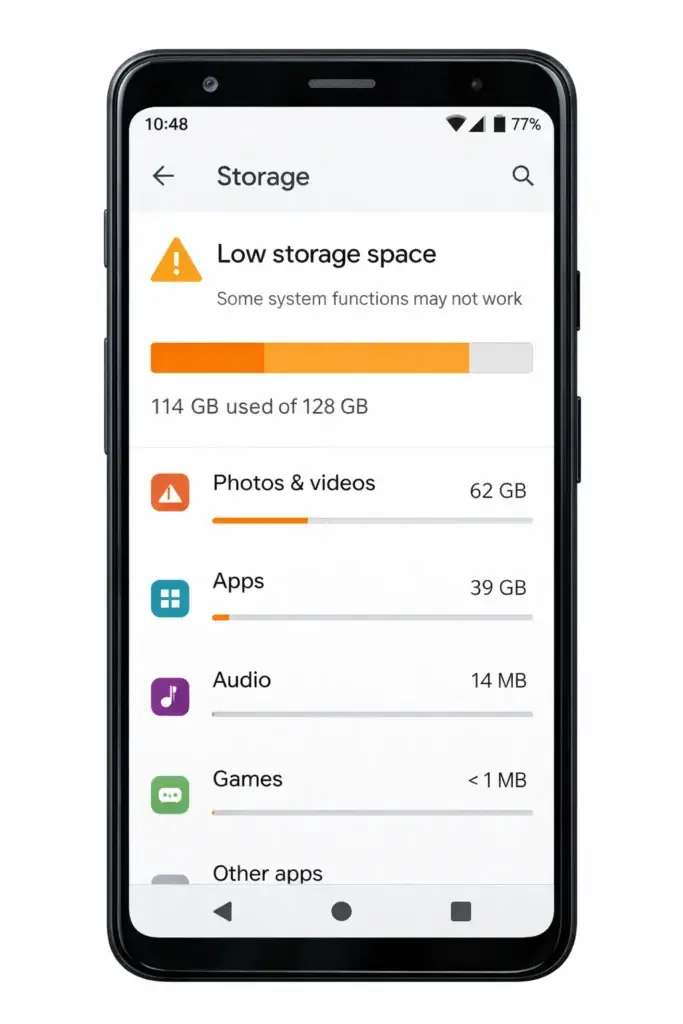
3️⃣ Check Storage Space
Apps cannot install if storage is full.
Steps:
- Go to Settings
- Tap Storage
- Check available space
If storage is low:
- Delete unused apps
- Remove old photos/videos
- Clear large downloads
Why This Works
Android needs extra temporary space to unpack and install apps.
📌 Keep at least 1GB free for smooth performance.
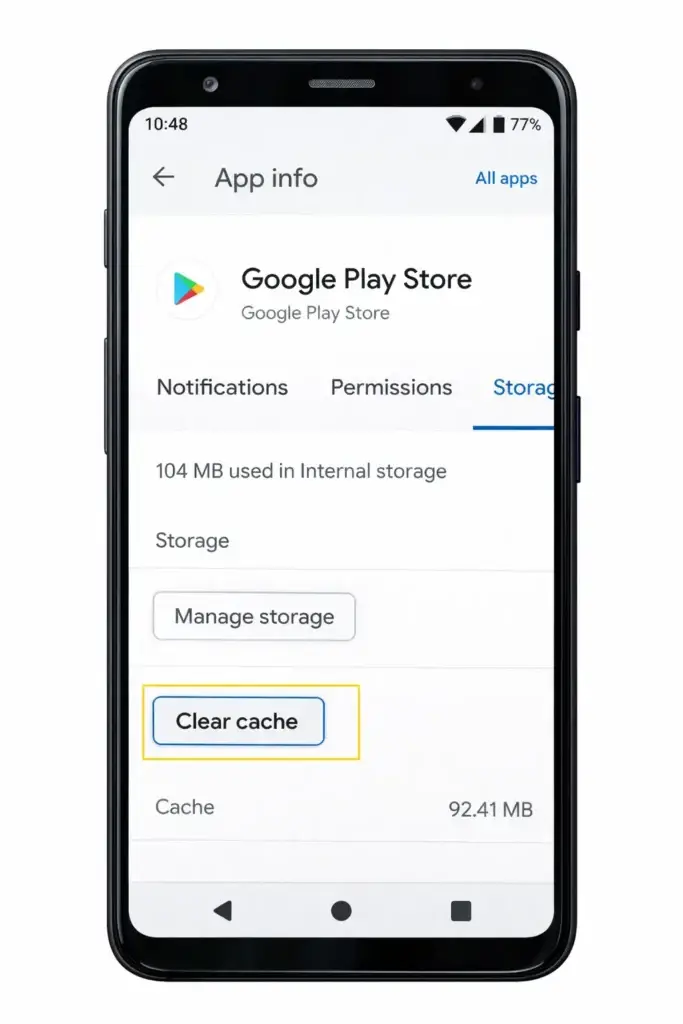
4️⃣ Clear Google Play Store Cache (Most Effective Fix)
This fixes most installation problems.
Steps:
- Go to Settings
- Tap Apps
- Find Google Play Store
- Tap Storage
- Tap Clear Cache
- Restart your phone
If still not working, tap Clear Data (don’t worry, apps won’t be deleted).
Why This Works
Cache files may become corrupted and block downloads. Clearing them forces Play Store to create fresh files.
5️⃣ Clear Google Play Services Cache
Play Services runs in the background and manages app downloads.
Steps:
- Go to Settings
- Tap Apps
- Select Google Play Services
- Tap Storage
- Tap Clear Cache
Restart your device.
Why This Works
If Play Services glitches, Play Store cannot install apps properly.
6️⃣ Remove and Re-add Your Google Account
If there is a sync issue, apps may not install.
Steps:
- Go to Settings
- Tap Accounts
- Select your Google Account
- Tap Remove Account
- Restart phone
- Add the account again
Why This Works
This refreshes authentication and fixes account-related download errors.
⚠️ Make sure you know your Google password before removing the account.
7️⃣ Update Android System & Play Store
Old software can cause compatibility issues.
Update Android:
- Go to Settings
- Tap Software Update
- Tap Download and Install
Update Play Store:
- Open Play Store
- Tap profile icon
- Go to Settings → About
- Tap Update Play Store
Why This Works
New updates fix bugs that stop apps from installing.
Samsung and Xiaomi users especially should check this after major updates.
8️⃣ Check Date and Time Settings
Wrong time settings can block downloads.
Steps:
- Go to Settings
- Tap Date & Time
- Enable Automatic Date & Time
Why This Works
Google servers require correct time to verify downloads.
🛠 Troubleshooting Tips
If apps still won’t install:
✅ Try installing a different app
✅ Check if Play Store is down (search: “Is Google Play down?”)
✅ Disable VPN temporarily
✅ Turn off Battery Saver mode
❌ Common Mistakes
Avoid these errors:
- Clearing important system apps randomly
- Installing apps from unknown websites
- Using aggressive cleaner apps
- Ignoring storage warnings
- Not restarting after clearing cache
These mistakes can make the problem worse.
Additional Tips to Prevent the Issue
To avoid Android apps not installing from Play Store in the future:
- Keep at least 2GB free storage
- Update apps regularly
- Avoid too many cleaner apps
- Use stable Wi-Fi
- Restart your phone once a week
Prevention keeps your device healthy.
Frequently Asked Questions
1. Why does my Play Store say “Pending” and not download?
This usually happens because of poor internet, multiple apps downloading at once, or Play Store cache problems.
2. Why won’t apps install even with enough storage?
The issue may be corrupted cache, outdated Play Services, or a Google account sync error.
3. How do I fix Play Store download stuck at 100%?
Clear Play Store cache and restart your phone. Also check storage space.
4. Can a virus stop apps from installing?
Yes, malware or unsafe apps can block installations. Install a trusted antivirus and scan your device.
5. Why can’t I install apps on my Samsung phone?
Samsung devices may block downloads due to battery optimization, system update bugs, or storage limits. Follow the cache-clearing steps above.
✅ Conclusion
If your Android apps are not installing from Play Store, do not panic. The problem is usually simple.
Start with:
- Restarting your phone
- Checking internet
- Clearing Play Store cache
Most users fix the issue within minutes using these steps.
Follow the solutions in order, and your Play Store should work again.
- https://support.google.com/googleplay/
- https://support.google.com/android/
- https://www.samsung.com/support/




[…] Android Apps Not Installing From Play Store Fixes You Must Try […]
[…] Android Apps Not Installing From Play Store Fixes You Must Try […]
[…] Android Apps Not Installing From Play Store Fixes You Must Try […]
[…] Android Apps Not Installing From Play Store Fixes You Must Try […]
[…] Android Apps Not Installing From Play Store Fixes You Must Try […]