
Introduction
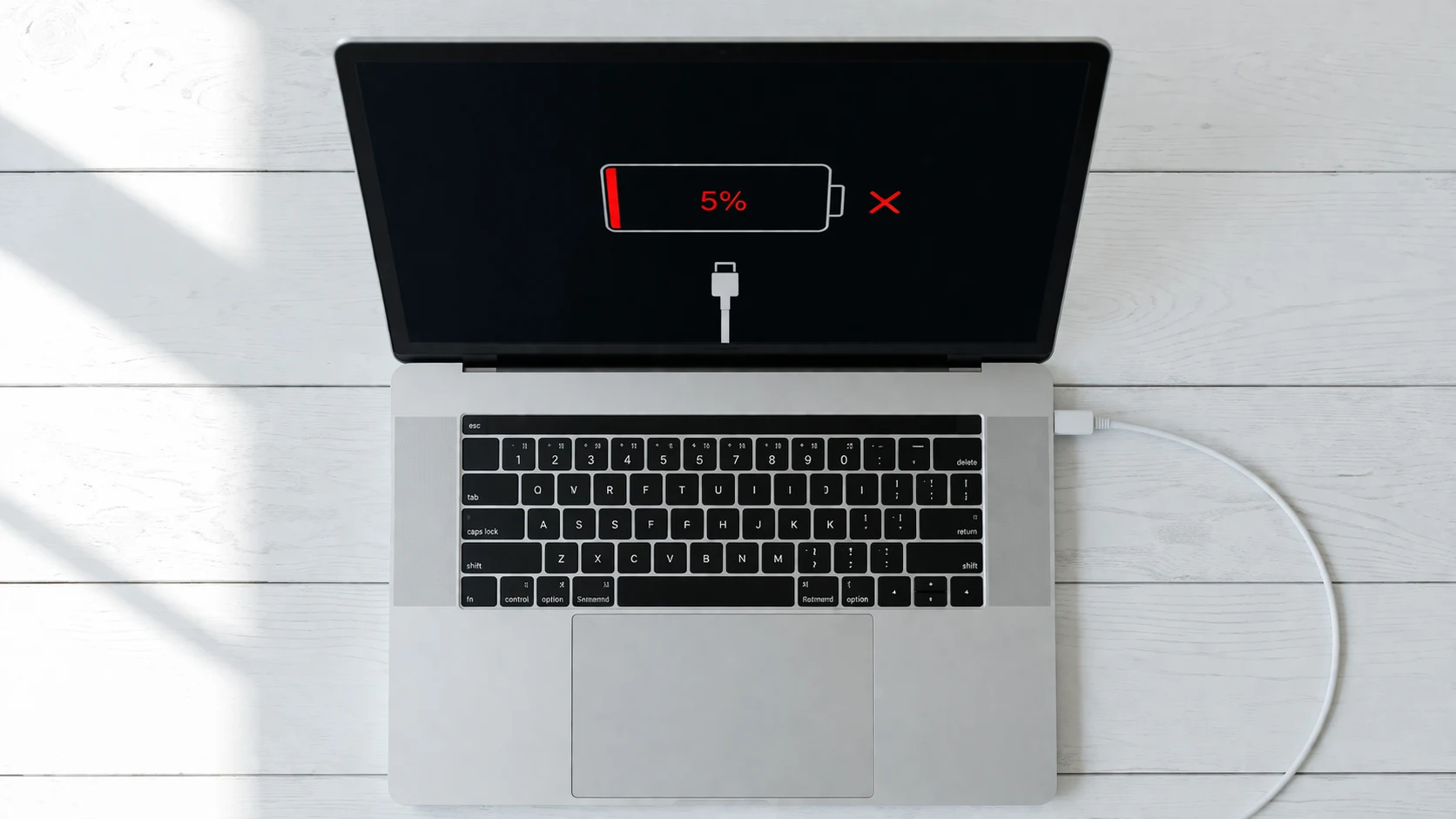
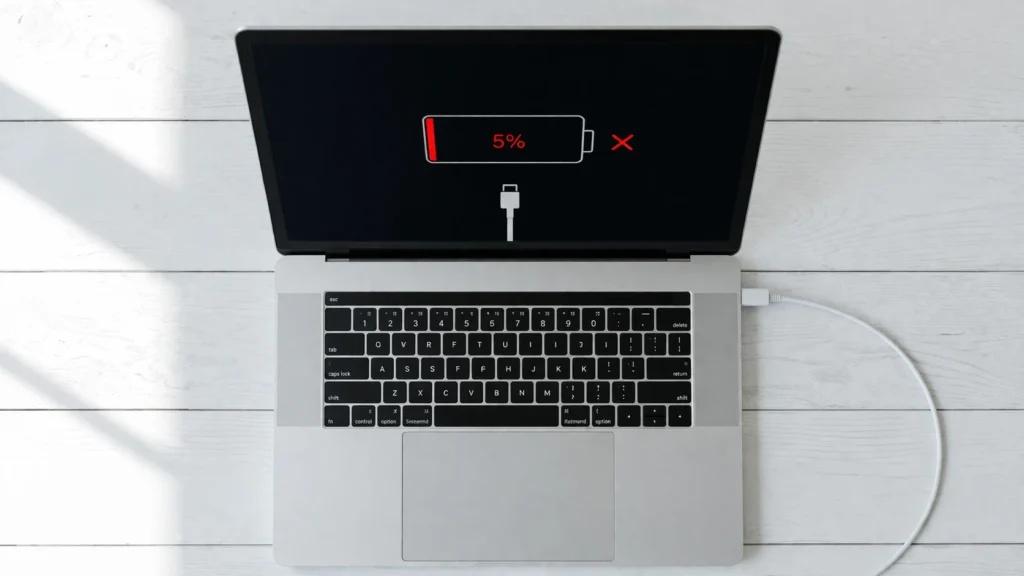
A laptop battery not charging is one of the most common and frustrating problems users deal with every day. You plug in your charger, the light turns on, but the battery percentage refuses to go up. Sometimes it even drops while plugged in.
This laptop charging problem affects every brand — Dell, HP, Lenovo, ASUS, Acer, and MacBook. It can appear after a Windows update, when switching to a new charger, or completely without warning. You might see the dreaded message “plugged in, not charging” sitting in your taskbar.
The good news? When your laptop battery is not charging, it rarely means the battery is dead. Most of the time, you can fix a laptop that won’t charge yourself in minutes without spending any money. This complete guide walks you through every proven solution.
Quick Answer
If your laptop battery is not charging, try this first: unplug the charger, shut down the laptop completely, remove the battery (if removable), hold the power button for 30 seconds, reconnect the battery and charger, then power on. This hard reset fixes the laptop not charging issue for the majority of users. If the problem continues, follow the detailed fixes below.
Why This Laptop Battery Not Charging Problem Happens
Before jumping into fixes, understanding why your laptop battery is not charging helps you choose the right solution faster. Here are the most common reasons behind this laptop charging problem:
- Faulty charger or cable — Frayed wires, bent pins, or a broken adapter stop current from reaching the battery.
- Software glitch — Windows or macOS sometimes misreads battery status, causing a plugged in not charging error.
- Corrupted battery driver — The driver managing charging communication between hardware and software can break after updates.
- Overheating protection — Laptops automatically pause charging when temperatures get dangerously high.
- Battery wear and degradation — All laptop batteries lose capacity over 2–4 years of regular use.
- Wrong charger wattage — Using a charger with lower wattage than your laptop requires can result in the laptop not charging properly.
- Charge threshold settings — Some brands (Lenovo, ASUS, Dell) include software that stops charging at a set percentage to preserve battery health.
- Outdated BIOS — Old BIOS firmware can cause charging miscommunication between the motherboard and the battery.
How to Fix Laptop Battery Not Charging (12 Step-by-Step Methods)
Here are 12 proven methods to fix a laptop battery not charging. Start from Fix 1 and work your way down. The simplest solutions come first.
Fix 1: Check Your Charger and Cable
Why this works: A damaged charger is the number one reason behind a laptop battery not charging. Physical damage is easy to miss.
Steps:
- Unplug the charger from the laptop and the wall outlet.
- Inspect the entire cable for cuts, bends, or fraying.
- Check the charging tip for bent or blackened pins.
- Feel the adapter brick — if it’s extremely hot or smells burnt, it has likely failed.
- Test with a different compatible charger if available.
Fix 2: Try a Different Power Outlet
Why this works: A tripped breaker, loose outlet, or faulty surge protector can silently cut power, making it look like your laptop won’t charge.
- Unplug the charger from the current outlet.
- Plug it directly into a different wall outlet — skip power strips and extension cords.
- Wait 30 seconds and check if charging begins.
Fix 3: Perform a Hard Power Reset
Why this works: A hard reset clears residual electrical charge from the motherboard that can block battery charging. This is the single most effective fix for the “plugged in, not charging” problem.
Steps:
- Shut down the laptop completely (don’t just close the lid).
- Unplug the charger.
- Remove the battery if it’s removable.
- Hold the power button for 30 seconds.
- Reinsert the battery.
- Plug the charger back in.
- Turn the laptop on.
This fix resolves the laptop battery not charging issue on Dell, HP, Lenovo, and most Windows laptops.
Fix 4: Remove and Reseat the Battery
Why this works: A loose battery connection interrupts charging signals, making your laptop battery not charge even when plugged in.
- Power off the laptop.
- Flip it over and locate the battery latch(es).
- Slide the latch and carefully remove the battery.
- Wait 60 seconds.
- Reinsert the battery firmly until you hear a click.
- Turn on the laptop and plug in the charger.
Note: If your laptop has a built-in non-removable battery, skip to Fix 6.
Fix 5: Check for Overheating
Why this works: Laptops have thermal protection circuits that automatically pause charging when temperatures are too high. Overheating is a hidden cause of laptop battery not charging.
- Feel the bottom of your laptop. Is it unusually hot?
- If yes, shut down the laptop and let it cool for 15–20 minutes.
- Make sure vents are not blocked by blankets, pillows, or dust.
- Place the laptop on a hard, flat surface.
- Try charging again once the laptop cools down.
Fix 6: Update or Reinstall Battery Drivers (Windows)
Why this works: The battery driver tells Windows how to manage charging. A corrupted driver is a top reason for the laptop plugged in not charging error.
Steps:
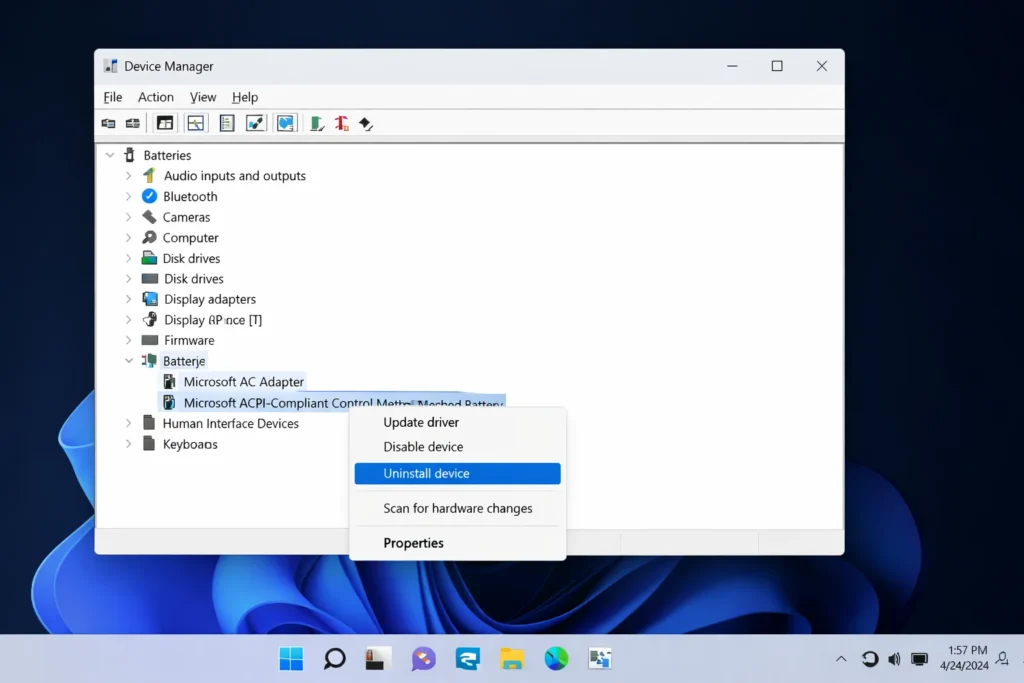
- Right-click the Start button and select Device Manager.
- Expand the Batteries section.
- Right-click Microsoft ACPI-Compliant Control Method Battery.
- Click Uninstall device.
- Click OK to confirm.
- Restart your laptop.
Windows automatically reinstalls the driver on reboot, often fixing the laptop battery not charging problem instantly.
Fix 7: Run the Windows Power Troubleshooter
Why this works: Windows includes a built-in tool that automatically detects and fixes common power and battery not charging problems.
- Open Settings (press Windows + I).
- Go to System > Troubleshoot > Other troubleshooters.
- Find Power and click Run.
- Follow the on-screen instructions.
- Restart your laptop after completion.
(On Windows 10: Settings > Update & Security > Troubleshoot > Additional troubleshooters > Power.)
Fix 8: Adjust Battery Charge Threshold Settings
Why this works: Some manufacturers include software that limits charging to 60% or 80% to prolong battery life. If enabled, your laptop battery won’t charge to 100% — and it’s working as intended, not broken.
Where to check:
- Lenovo: Open Lenovo Vantage > Battery Settings > Conservation Mode → Turn OFF.
- ASUS: Open MyASUS > Battery Health Charging → Switch to Full Capacity Mode.
- Dell: Open Dell Power Manager > Battery Information → Check charge settings.
- HP: Open HP Battery Health Manager in BIOS.
Fix 9: Check and Update BIOS Settings
Why this works: The BIOS controls low-level hardware functions including battery charging. An outdated BIOS is a known cause of laptop battery not charging on many models.
- Restart your laptop.
- Immediately press F2, F10, DEL, or ESC to enter BIOS (varies by brand).
- Navigate to the Power or Advanced tab.
- Ensure battery charging options are set to Standard or Enabled.
- Check your manufacturer’s website for a BIOS update and install if available.
- Save and exit.
Warning: Only change BIOS settings you understand. Incorrect changes can cause boot issues.
Fix 10: Reset the SMC (MacBook Users)
Why this works: The System Management Controller (SMC) manages all power and battery functions on MacBooks. Resetting it clears charging errors that cause a MacBook battery not charging issue.
For Apple Silicon MacBooks (M1/M2/M3/M4):
- Shut down the MacBook completely.
- Wait 30 seconds.
- Turn it back on. (SMC resets automatically.)
For Intel-based MacBooks:
- Shut down the MacBook.
- Press and hold Shift + Control + Option + Power button for 10 seconds.
- Release all keys.
- Turn on the MacBook.
Fix 11: Calibrate Your Laptop Battery
Why this works: Over time, the battery sensor loses accuracy and displays incorrect charge levels, sometimes making it appear that your laptop battery is not charging when it actually is.
- Charge the laptop to 100%.
- Keep it plugged in for 2 additional hours.
- Unplug and use the laptop until it completely dies.
- Leave it powered off for 5 hours.
- Charge it back to 100% without interruption.
Repeat this calibration every 2–3 months to maintain accurate battery readings.
Fix 12: Replace the Battery or Charger
Why this works: If none of the fixes above resolve your laptop battery not charging issue, the hardware itself has reached the end of its lifespan.
How to check battery health:
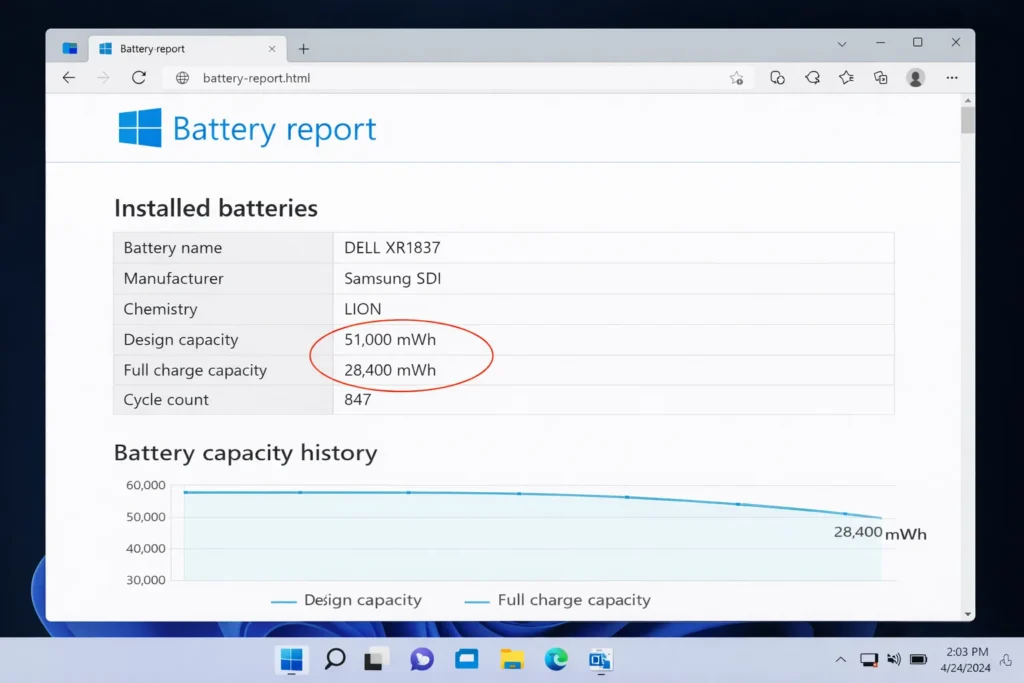
- Windows: Open Command Prompt as Admin and type powercfg /batteryreport. Open the generated HTML file to see current capacity vs. original design capacity.
- MacBook: Click Apple Menu > System Settings > Battery and check the battery condition.
When to replace:
- Battery health is below 40–50%
- Battery is visibly swollen or bulging
- Laptop only works when plugged in
- Battery charges to less than 20% and dies quickly
Always buy OEM or manufacturer-certified batteries and chargers.
Troubleshooting Tips
🔧 Quick Checklist When Your Laptop Battery Is Not Charging
- ✅ Test the charger with another laptop if possible
- ✅ Clean the charging port using a toothpick or compressed air
- ✅ Look at the charging LED — does it blink, stay solid, or stay off?
- ✅ Boot into Safe Mode and check if the battery charges there
- ✅ Check if the laptop battery charges when the laptop is turned off
- ✅ Try a USB-C charger if your laptop supports USB-C power delivery
- ✅ Disconnect all external devices (USB drives, monitors, peripherals) and try charging again
Common Mistakes to Avoid
When trying to fix a laptop battery not charging, avoid these mistakes that can make the problem worse:
- Using cheap third-party chargers — Low-quality chargers deliver inconsistent power and can permanently damage your battery or motherboard.
- Ignoring a swollen battery — If the laptop’s bottom case is bulging, stop using it immediately. A swollen battery is a fire and safety hazard.
- Keeping the laptop plugged in 24/7 — Constant 100% charge accelerates battery degradation on laptops without smart charging features.
- Skipping driver and system updates — Outdated battery drivers cause more laptop not charging issues than most users realize.
- Forcing open a sealed laptop — If the battery is non-removable, don’t pry the case open yourself. Visit an authorized service center instead.
- Using the wrong wattage charger — A 45W charger on a laptop that requires 90W will result in the laptop plugged in but not charging.
Additional Tips to Prevent Laptop Battery Not Charging Issues
Prevention is always better than troubleshooting. Follow these tips to avoid laptop battery not charging problems in the future:
- Keep your operating system updated. Windows and macOS updates often include battery management fixes.
- Avoid extreme temperatures. Never leave your laptop in a hot car or use it under direct sunlight for extended periods.
- Always use the original charger or a manufacturer-approved replacement with the correct wattage.
- Enable battery health features like Lenovo Conservation Mode, ASUS Battery Health Charging, or Apple Optimized Battery Charging.
- Clean your charging port every few months using compressed air to remove dust and lint.
- Fully shut down your laptop at least once a week instead of relying solely on sleep mode.
- Avoid draining the battery to 0% regularly. Keep it between 20%–80% for optimal longevity.
Frequently Asked Questions
Why does my laptop say “plugged in, not charging”?
The “plugged in, not charging” message means Windows detects the charger but the battery is not accepting a charge. This is usually caused by a corrupted battery driver, charge threshold settings, or a degraded battery. Reinstalling the ACPI battery driver in Device Manager (Fix 6) resolves this for most users experiencing laptop battery not charging.
Can a bad charger damage my laptop battery?
Yes. A charger delivering incorrect voltage or unstable current can damage battery cells over time. This is a common cause of laptop battery not charging after using third-party accessories. Always use the original charger or buy a certified replacement from your laptop manufacturer.
How do I know if my laptop battery needs to be replaced?
If your laptop battery is not charging past a low percentage, drains within an hour, or Windows displays a “Consider replacing your battery” warning, it’s time for a replacement. Run powercfg /batteryreport in Command Prompt to check your battery’s current capacity versus its original design capacity.
Why does my laptop only charge when turned off?
This usually means the charger doesn’t supply enough wattage to power the laptop and charge the laptop battery simultaneously. It can also indicate a failing charger or a background software conflict drawing too much power. Try using the correct wattage charger and booting into Safe Mode to test.
Is it bad to use my laptop while charging?
No, it’s completely safe. Modern laptops are designed for use while plugged in. However, keeping the laptop battery at 100% charge continuously for days can accelerate wear. Enable your laptop’s smart charging or battery limiter feature if available to prevent long-term degradation.
Conclusion
A laptop battery not charging is almost always fixable at home without professional help. Start with the basics — check your charger, try a different outlet, and perform a hard power reset. These three simple steps solve the laptop not charging problem for the majority of users.
If those don’t work, move through driver reinstalls, Windows Power Troubleshooter, charge threshold settings, and BIOS updates. MacBook users should reset the SMC. Only consider a battery replacement after all software and configuration fixes have failed.
The key to fixing a laptop battery not charging is troubleshooting in order: simple fixes first, advanced solutions second. If you’ve tried every method in this guide and your laptop still won’t charge, take it to an authorized service center for a hardware-level inspection.
Bookmark this page — you’ll want it handy the next time your laptop battery refuses to cooperate.
- Microsoft Support – Troubleshoot battery and power in Windows
- Apple Support – Reset the SMC on your Mac
- Dell Support – Battery Not Charging Troubleshooting



